Search This Blog

Friday, May 20, 2011

Mobile Phone Spying...


Using this trick you can check whether your baby is crying or not when you are not in the room.For using this trick you will need the following things.
1.Mobile handset
2.Set of Headphones
Lets begin the step by step tutorial on how to spy using your mobile phone.
1.Plug in your headset/earphone into your mobile phone.
2.Now go to settings of your mobile phone and find the setting for auto answer and activate it.
3.Now turn off the ringtone/volume of your mobile phone also make sure that the vibration is also turned off.
5.Also make sure that the lights of your phone are turned off or place it in such a place where its lights cannot be noticed.


Source: pctipstricks
4.Place the mobile phone in some hidden place and make sure that voices of the room can be easily heard through this mobile phone.
5.Now whenever you want to check what is going in the room just dial the mobile number with some other phone.
6.Your phone will be picked automatically and you can hear clearly what’s happening in the room.

Friday, May 6, 2011

Encase now supports the iPad


Here’s a press release regarding Guidance Software supporting iOS devices, focusing in particular on the iPad as it relates to Enterprise investigations.
The question is…does it support physical acquisitions? Bypass security codes etc? Or do they not passcode protect devices in the Enterprise environment?
Still, I think its great that Guidance is finally coming to the table on this one!

Source: mobileforensics

Thursday, May 5, 2011

Hacking Any Windows Administrator Password

Here, I am going to describe you on how to hack any windows( whether Xp, Vista or 7, many more) password wihout being logged into the account. This is the very easiest way which I regularly use myself to hack and break into my friends Computers. I will show you on how to change Windows User Password (Administrator, Guest, User, many more) from a bootable USB drive or a CD.

The software which I will use is Active@ Password Changer. You can download it from here. (Serial Number is Already Included in the package so that you can use this utility for free)

What is Active@ Password Changer?

Active@ Password Changer lets you reset local user passwords and change Windows login security restrictions on Windows NT / 2000 / XP / 2003 / Vista/ 7 systems: this is useful when the Administrator’s password is forgotten or lost, or when the Administrator’s user account has been disabled or locked out.

How to Create a bootable USB Drive to hack Windows Admin Password?


You must first install this software on your own system and make a bootable disk from it. I will show you how to make a bootable disk:

After the installation finishes, click on Start->All Programs->Active@ Password Changer->Bootable DOS disk creator.
Insert any USB drive and click on Start!

This will start the writing process after it finishes, then boot your system from that USB disk (You may have to press F12 or someother key for boot options when computer/laptop is just started as it depends on the computer and bios version you are using, You can look for it in computer bios setup, If there isn't any option of USB booting then rather make bootable CD from the program).

Changing/Hacking Password Using Active@ Password Changer:

Once you boot from that USB drive you must see a screen like this:

Choose any desired option. It is recommended to choose 2
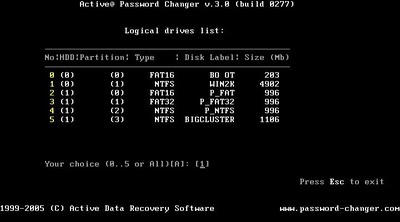
After choosing you will see a list of logical drives

Choose any particular drive and press Enter
After it you will see the MS-SAM Database files

Press Enter
Then you will see the list of Users and Description


Select the user of which you want to change or clear the password. After you will select you will see something like this:

If you want to clear the password then press Y and hit Enter. You may also choose to change the option, you can do this by using Space key to enable or disable it.

You can also create a bootable CD/DVD ROM if you don't have other option as i told you above!

I hope you enjoyed my guest post at Hackers Thirst!
For more information about SAM file and cracking windows password go here.


Source : hackersthirst

Ncell Internet

Ncell is growing big with all the communication and technology things these days. With wide margin of local advertisements and social media promotions Ncell has brought a lot of Ncell schemes and programs for their users. There are many ways to get connected with the Ncell internet through various protocols like WAP, EDGE, GPRS e.t.c. These service can be used to surf basic internet and checking your email from anywhere. You can also use handset as modem to connect to the wireless internet to your PC, chatting with friends P.S. downloading the application you need, through Ncell internet.


What to do inorder to activate Ncell Internet?
First Step:  Type ‘A’ and send this SMS to 900224
If you dial 900 and follow the instruction you will get your activation of ncell internet.
If  you dial *100# and follow the instructions you will get your activation of ncell internet.


What to do inorder to deactivate the Ncell Internet connection?
Here are the steps if you want to deactivate the internet connection of Ncell:
First Step: Type ‘R’ and send this SMS to 900224
You can dial 900 and follow the given instruction
You can also dial *100# and follow the instructions
These are some of the steps for activating and deactivating ncell internet connection.

Till then Keep Rocking!!

Wednesday, April 27, 2011

Linux command tricks

Some Linux Command line tricks... Which is very useful...

seq

This is one of the coolest (and most useful) tips I have ever come across.  The seq command will print out a sequence of numbers. So if you issue the

command:
seq 0 50

You will see the numbers 0-50 printed out on the terminal. Very simple. Sure that’s great but what good is a sequence of numbers? Let’s apply it and find out. Remember you can always declare a value in bash and by making use of the $ symbol you can use variables in your commands. So what happens if you issue the command:

for k in `seq -w 1 50` ; do ssh 192.168.100.$k uptime ; done

What happens is ssh will walk through all the addresses from 192.168.100.1 to 192.168.100.50 until it finds one with an ssh server accepting connections. When it does it will ask you for the users password and then print out the uptime of that machine. Very handy indeed.

How much space left?

Quick, how much space do you have left on your drive(s)?  And where are those drives mounted on? Do you have the answer yet? If you had a terminal window open you could have issued the command df -h and you would have seen, in a user-friendly format, the percentage of your hard disk space that has been used. Very handy command.

Those pesky bash colors
Do you prefer the colors you see in bash? Do you even know about the colors in bash? From the command line issue the command ls you will see that files are black, folders are blue, executables are green (that’s a simplistic explanation). What if those colors bother you (or cause your pretty transparent terminal from giving you a good read on your file listing)? You can turn that off easily from the command by issuing:

ls --color=none

Of course that is a one-time deal. In order to make this permanent you have to edit your ~/.bashrc file. In that file you will see the following entry:

alias ls='ls --color=auto'

Comment out that entry and ls will no longer use color.

Find files modified TODAY

If you have saved a file today and you can’t remember where you saved it, you can use the find command to print out all files modified today. The command:

find ~ -type f -mtime 0

Will print out a listing of all files that were modified on the day the command was issued (today).

Install from source to package

That might not make any sense. It will in a moment. Say you’ve downloaded
the source for a package that you want to install, but you want to keep with the standard for your distribution by installing it from a package (so your package manager is aware of it). You can do this with the help of the checkinstall application. This isn’t installed by default, but you can install it with the command sudo apt-get install checkinstall. Once installed you can install from source with the command (from within the source code directory):

./configure && make && checkinstall


Source : ghacks

Thursday, February 24, 2011

SVCHOST.exe Virus & Removal

It is possible for malicious softwares to modify the windows registry & make SVCHOST.exe process to load the wrong malicious .dll files. Which will endup in making your computer or network affected with viruses and malewarez.
Another common approach is that virus files are names SCVHOST.exe did you see the difference in the filenames ? SVC vs SCV??
What this file sCvhost.exe does is that it allow hackers to access all your personal information, This is a virus of tye W30/Agobot-S , You may also call this a trojan horse. Since it hides itself with a genuine process name.

How to remove Svchost.exe virus or sCvhost.exe virus:

1. Removing the Svchost virus can be a very tedious task, Though i personally managed to somehow remove the virus using advanced tactics, It is not recommended that you try and follow the same, Because a single mistake could lead to a damaged Operating system, Which would be difficult to recover.
2. So instead of giving you the steps I find it appropriate to suugest you that you should use an Anti-virus to do this for you.
3. You can grab your self a free copy of antivirus over here ( Norton Internet Security).

100% CPU utilization error in SVCHOST.EXE Process & Memory Leaks:

The first solution to this problem is that you may just want to restart the computer, Most of the times this will solve your problem,Another quick solution for this problem is to start the task manager & find the process causing this problem & then right click the process name and set the priority to low.

Saturday, February 19, 2011

Make Ultra Strong Passwords

Strong Article Worth Sharing.

As some Microsoft Operating System geeks know, you can type many more characters than are on a standard keyboard by using the ALT+NUMPAD combination technique. For example, by holding down the ALT key, typing 234 on the number pad, then releasing ALT gives you the O character. I'm writing this article mostly because when I search around for information on the topic of ALT+Number key combos I find pages that are lacking in details. Most of the pages I found are coming from the angle of using ALT+NUMPAD combinations as shortcuts for typing in non-English languages, but I have another use for them. Using ALT+NUMPAD can make for some very ugly passwords to crack. These odd characters have two major advantages over normal keystrokes:


1. They are unlikely to be in someone's dictionary or brute force list. Try brute forcing a password like "ace of ?s" or "I am the a and the O".
2. Some hardware key loggers will not log these odd characters. Your mileage may vary on this as some key loggers can, so don't rely on it to keep you 100% safe.

I'll cover the 2nd point more in an upcoming article. Using ALT+NUMPAD to type odd characters into your password also has a few disadvantages.


1. The way they are described in this article only works in Microsoft Operating Systems (DOS, Windows 9x, Vista, XP, 2000), and there may be some variation amongst the different versions. If you know of a good way to do the same thing in Linux please email me.
2. Not all applications will let you use these odd characters. For testing I tried the password "Oÿ" (ALT+234 and ALT+0255) on a Windows XP local account,, but not all application will let you use these sorts of characters in your password.

Microsoft has the following to say on the subject of ALT+NUM key codes:


From:http://www.microsoft.com/globaldev/reference/glossary.mspx


Alt+Numpad: A method of entering characters by typing in the character’s decimal code with the Numeric Pad keys (Num Lock turned on). In Windows:


• Alt+<xxx>, where xxx is the decimal value of a code point, generates an OEM-encoded character.
• Alt+<0xxx>, where xxx is the decimal value of a code point, generates a Windows-encoded character.
• Alt+<+>+<xxxx>, where xxxx is the hexadecimal Unicode code point, generates a Unicode-encoded (UTF-16) character.


Shortly I'll explain explain the first two methods further. The 3rd is more problematic to work with. First, you may have to edit your registry and add a the REG_SZ value "HKEY_Current_User/Control Panel/Input Method/EnableHexNumpad", then set it to "1". Also, depending on where you are trying to type the character the application may interpret your hexadecimal Fs as attempts to bring down the file menu. Since method three is so problematic I'll focus on the first two methods.
First, make sure you are using the number pad and not the top roll number keys, only the number pad works for this. Second, make sure NUM LOCK is on. It does not have to be on in all cases for these key combos to work, but it helps by keeping the number pad from being misinterpreted.

The chart from the site shows the relevant key codes to get various symbols. The table on the left shows the OEM Extended ASCII character set (AKA: IBM PC Extended Character Set; Extended ASCII; High ASCII; 437 U.S. English). True ASCII is only 7 bit, so the range is 0 to 127. IBM extended it to 8 bits and added more characters. To type these characters you merely have to hold down an ALT key, type the numeric value of the character, then release the ALT key.

The table on the right shows the ANSI character set (AKA: Window's ANSI/ISO Latin-1/ANSI Extended ASCII, though technically they are not exactly the same thing.). To use the ANSI character set you do the same thing as the OEM set, but you preface the number with an extra zero. Notice that the first 127 should be the same in both sets, though values 0-31 may not be viewable in all cases. I've been in "character encoding hell" just trying to get this article on my site in a readable format.

For example, ALT+257 gives me a in Wordpad, but in Notepad it loops back around the character set and gives me?(257-256=1 which is ? in the OEM set) . If you want to know what key code will bring up a particular character in a certain Windows font run Windows Character Map (charmap.exe) and look in the bottom right corner to find out.

some examples :

ALT+130 é
ALT+131 â
ALT+132 ä
ALT+133 à
ALT+134 å
ALT+135 ç
ALT+136 ê
ALT+137 ë
ALT+138 è
ALT+139 ï
ALT+140 î
ALT+141 ì
ALT+142 Ä
ALT+143 Å
ALT+144 É
ALT+145 æ
ALT+146 Æ
ALT+147 ô
ALT+148 ö
ALT+149 ò
ALT+150 û
ALT+151 ù
ALT+152 ÿ
ALT+153 Ö
ALT+154 Ü
ALT+155 ¢
ALT+156 £
ALT+157 ¥
ALT+158 P
ALT+159 ƒ
ALT+160 á
ALT+161 í
ALT+162 ó
ALT+163 ú
ALT+164 ñ
ALT+165 Ñ
ALT+166 ª
ALT+167 º
ALT+168 ¿
ALT+169 ¬ 


Source: Irongeek